Adding audio to your library
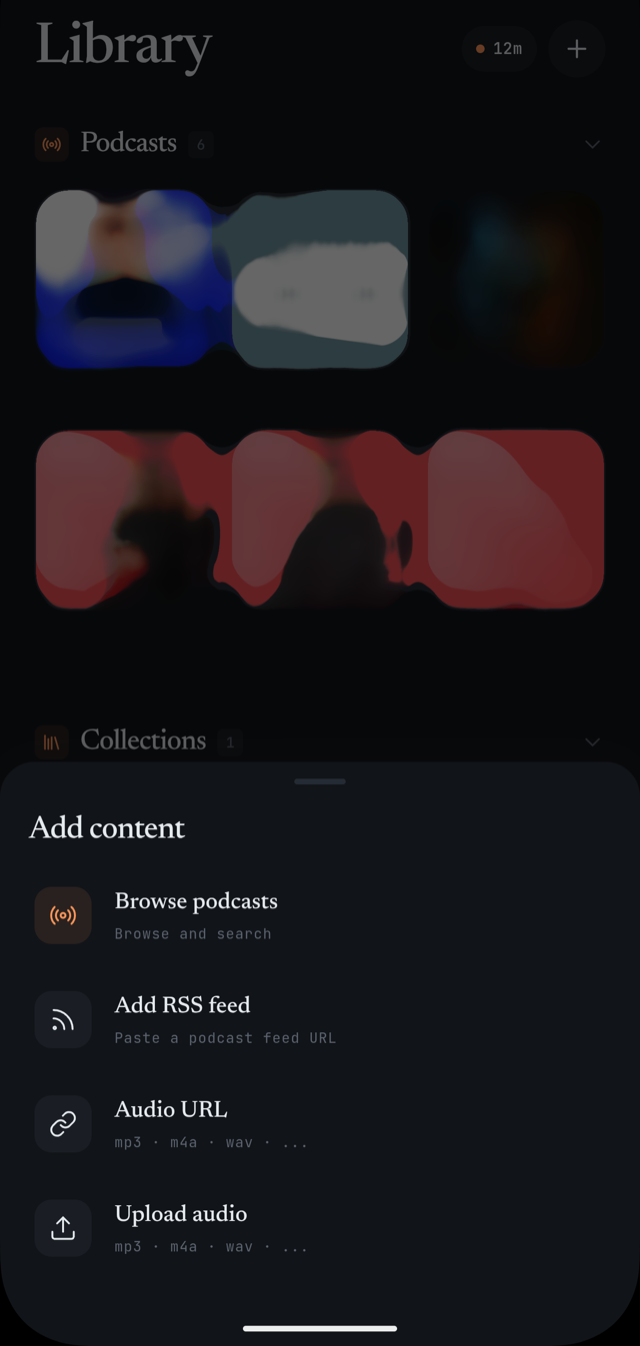
Podcasts have their own page — this one is about audio that is not already a podcast episode: a file on your phone, or a link to audio anywhere on the web. Both land in a collection on your Library tab and start transcribing on their own.
Upload, or paste a link
- Upload audio
- Pick a file already on your phone. Good for voice memos, lecture recordings, or anything you were sent directly.
- Audio URL
- Paste a link to audio anywhere on the web, including a YouTube link. E-clair fetches the audio itself — you do not need to download it first.
Uploading a file
Pick a file
On the Library tab, tap Add, then Upload audio. Your phone’s file picker opens; choose an audio file to continue.
Choose a collection
A sheet asks where the file goes: pick an existing collection, or tap New collection… and name one on the spot.
Name the episode
The title is prefilled from the filename, with the extension stripped, so you can leave it as is or edit it. A note field is there if you want one — it is optional. Uploads can also carry a cover image, which is optional too.
Add it
Tap Add to library. The file uploads, and the moment that finishes, transcription starts on its own — there is nothing else to tap.
Pasting a link
Paste the link
On the Library tab, tap Add, then Audio URL. Paste or type a link — the Paste button reads it straight from your clipboard.
Check the preview
A preview card appears once the link looks valid, with a title guessed from the link itself and, for a YouTube link, a play icon so you can tell it was recognised as one.
Choose a collection and name it
Pick a collection the same way as with an upload, then confirm or edit the title before adding it.
Add it
Tap Add to library. There is no upload phase for a link — transcription starts immediately.
What happens next
- The row shows live progress while the job runs — a percentage once it has one, or "Preparing" in the moment before the first update.
- You can leave the screen, or close the app entirely. Progress is tracked against the job, not against a screen being open, so the transcript is simply waiting for you next time.
- A podcast episode works differently: it needs a tap on Transcribe to begin. Uploads and links skip that step — they start on their own.
- The spoken language is detected automatically. You do not choose it up front.
What you can upload
The file picker accepts these formats. A pasted link is not limited this way — it is whatever audio the link points to.
- MP3
- M4A
- WAV
- AAC
- OGG
- FLAC
- AIFF
Failures and limits
- If a job fails, the row turns into a Retry affordance — tap it to open the item and try again.
- If a file is too large for the free plan, the app tells you at the point you try to add it, rather than letting the upload run and fail later.
- If you have used up your free transcriptions for the month, the app tells you and offers an upgrade instead of starting the job.
Limits on file size and monthly transcriptions exist on the free plan. E-clair tells you when you hit one, rather than letting a job fail silently.