Reading along with the audio
A recording opens into its transcript, not a static wall of text. As the audio plays, the transcript highlights exactly where you are, word by word, so you can follow along, look something up mid-sentence, or jump straight to the part you want to hear again.
What you see
The current word is highlighted a fraction of a second ahead of the audio, so the highlight and the sound land together rather than the text lagging behind. Past lines and words dim slightly so your eye can find the live one at a glance.
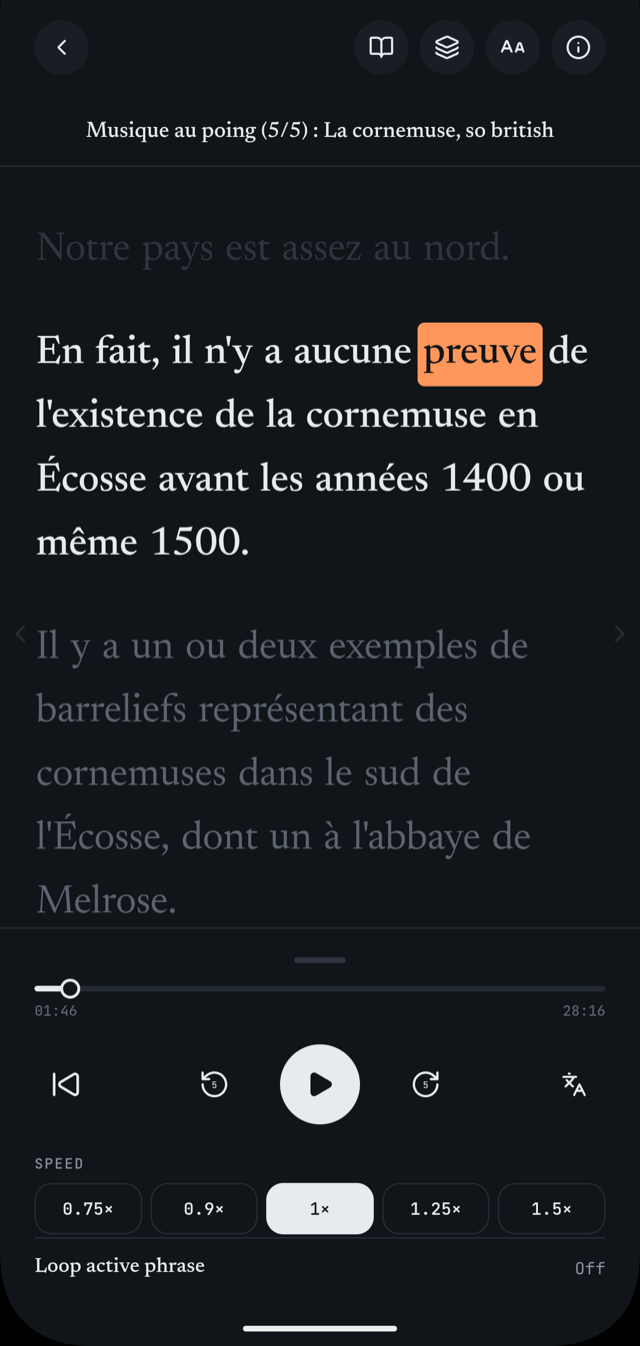
Gestures on a word
The marked text is what each gesture acts on.
- Tap a word
-
Opens a translation card for that word. The audio keeps playing underneath.
- Double-tap a word
-
Jumps the audio to the start of that word's phrase and keeps playing from there — the fastest way to re-hear or skip to a specific line.
- Press and hold a word
-
Opens a translation card for the whole phrase it belongs to, not just the one word.
Gestures on the screen
- Swipe left / right
- Turns to the next or previous page of the transcript.
- Swipe up / down
- Plays or pauses, without needing to reach for a button.
- Tap the page number
- Opens a list of every page with a short preview, so you can jump straight to one.
- Tap the chevron / tap the transcript
- Shows the playback controls (tap the chevron at the bottom) or hides them again (tap anywhere on the transcript while they are open).
Moving through a long transcript
Long recordings are split into pages sized to fit your screen, so you are always reading a comfortable block of text rather than scrolling through one continuous stream. While you play, the app turns pages for you automatically, keeping the active line in view.
- Turn a page yourself — swipe, or tap the arrow at the edge of the screen — and the app stops auto-turning until you play again or jump elsewhere, so it does not snap the page back out from under you while you are reading.
- The page number in the top corner shows where you are (page 3 of 12, say). Tap it to open a list of every page with a one-line preview, and jump straight to any of them.
Controlling the audio
The player panel sits at the bottom of the screen — tap the chevron to reveal it, or swipe up on the transcript.
- Drag anywhere on the scrub bar to seek to any point in the recording.
- The two skip buttons move 5 seconds back or forward.
- The restart button jumps back to the start of the current phrase. Tap it again quickly and it jumps to the previous phrase instead — handy for replaying a line you just missed.
- Expand the panel for speed (0.75x to 1.5x) and a loop toggle: switch loop on and playback repeats the current phrase from its start every time it reaches the end, instead of moving on.
Listening while you do something else
The screen stays on while you are reading, so the transcript does not go dark mid-sentence.
Leave for another tab — the Notebook or Flashcards, say — and playback keeps going. A small player stays pinned above the tab bar with a progress bar; tap it to jump straight back to where you left off, or swipe it away to hide it (a small tab remains so you can bring it back).