Saving words to your Notebook
The Notebook is where the words worth keeping go. Every entry remembers the recording and the moment it came from, so a word you saved three weeks ago is still one tap away from the audio that taught it to you.
Putting something in it
You save from the translation card, while you are reading. Tap a word for its translation and save it from there; press and hold for the whole phrase and save that instead; or press, pause, and drag across a run of words to translate and save just that part of a phrase. Nothing pauses, and you do not leave the transcript.
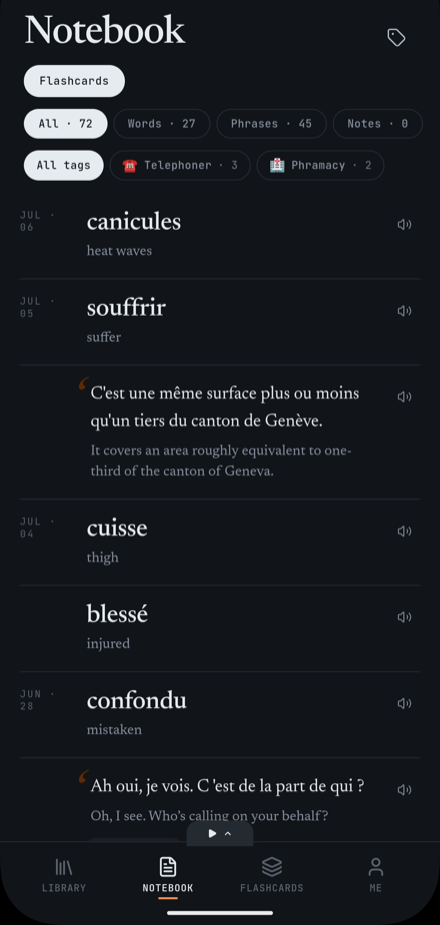
- Words
- A single word with its translation. This is what a tap on a word gives you, and it is the type that becomes a two-sided flashcard most naturally.
- Phrases
- A whole line or phrase with its translation — what you get from pressing and holding. Useful when the meaning lives in the construction rather than any one word.
- Notes
- Something you wrote yourself rather than something you translated. It sits alongside the rest so a thought about a recording is filed with the vocabulary from it.
What an entry keeps
- The word or phrase, in the language you are learning, with its translation underneath.
- The date you saved it.
- Any tags you have put on it, each showing its emoji if it has one.
- A replay button, when the audio behind the entry is still available — you can hear the moment again without leaving the list.
What you can do with one
Tap an entry to open its actions. There are four, and their names are the same words the app uses:
- Jump to moment
- Opens the recording at the exact timestamp the entry came from, with the transcript in place around it. This is the reason entries keep their timestamp.
- Add tags
- Puts the entry into one or more tags. Once it has some, the same action reads "Edit tags" and lists them.
- Add to Flashcards
- Sends the entry to a deck to review. Once it is in one, the action reads "In flashcards" and is greyed out, so you cannot add the same thing twice.
- Delete
- Removes the entry permanently.
Narrowing a long list
Two filters sit above the list and they combine, which is how you get from a few hundred entries to the handful you meant.
- Filter by type — All, Words, Phrases or Notes — with a live count beside each, so you can see what you have before you commit to a filter. You can also swipe the list sideways to cycle through them.
- Filter by tag to narrow whatever the type filter left.
- E-clair remembers the type filter you left it on and opens there next time.
Organising with tags
Tags are yours to invent — E-clair ships none, and nothing is auto-assigned. A tag is a name plus an optional emoji, and the emoji is what makes a tag findable at a glance in a long list.
- Create a tag while tagging an entry, or from the tag management screen.
- Rename a tag or change its emoji at any time; every entry carrying it updates.
- Delete a tag and the entries it held stay — only the label goes.
Anything you save can become a flashcard: a word becomes a two-sided card, and a phrase — or a part of one you selected — can be a two-sided card or a fill-in-the-blank, your choice. Practising with flashcards covers what happens after that.