Tracking your progress
E-clair keeps a running log of the time you spend listening. It lives on its own screen, tracked to your account, so you can see how much a language is actually getting from you, day to day and over the months.
Open the listening log
Tap the chart icon in the Library header, next to Add. That opens the listening log — the one screen in E-clair that reports on your listening.
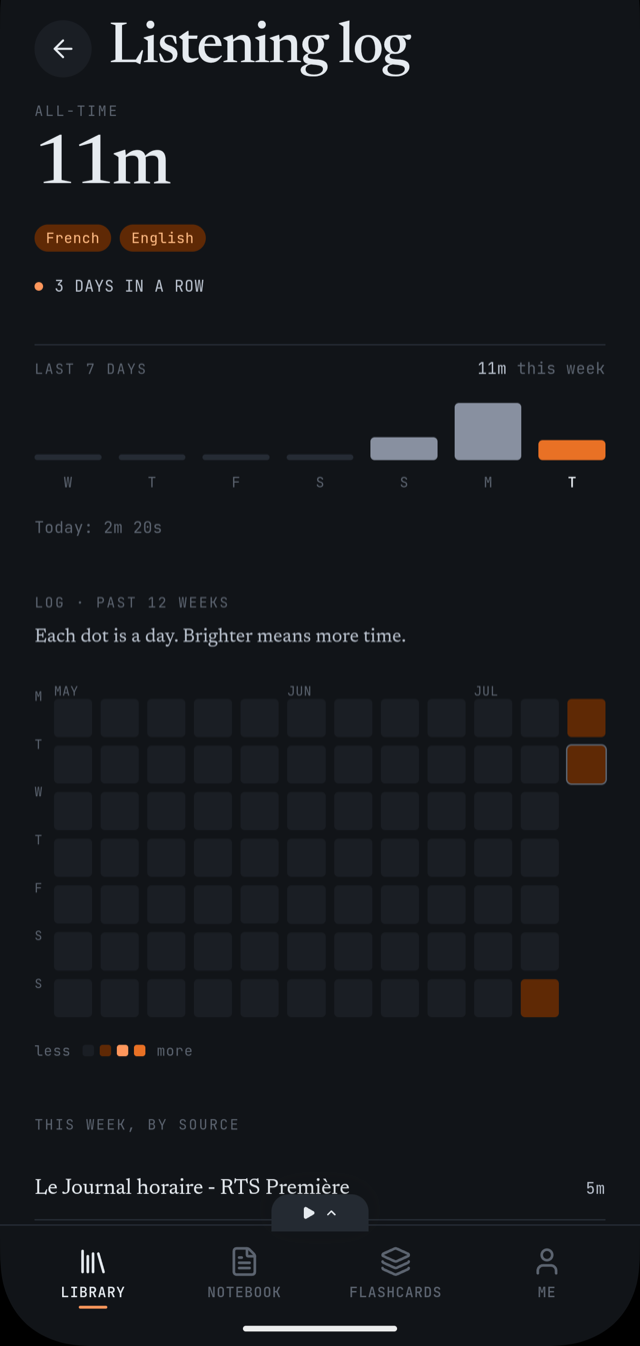
What each figure means
- All-time
- Total time listened since you started, shown as the headline number at the top of the screen.
- Languages
- A chip for each language you've listened in. It only appears once you've listened in more than one — a single-language total has nothing to add by naming it.
- Streak
- How many days in a row you have listened, ending today. It disappears rather than showing "0 days" once a streak breaks.
- Last 7 days
- A bar for each of the last seven days, plus the total for the week and, if you have listened today, a separate line for today alone.
- Log, past 12 weeks
- A grid of one dot per day, going back twelve weeks. Brighter dots mean more time that day, so a run of study or a gap both stand out at a glance.
- This week, by source
- The current week broken down by the podcast or show it came from, with uploads and pasted links grouped into a single row.
Automatic, not a timer you run
There is nothing to start or stop. Listening is logged automatically while you play a recording — there is no manual log entry or timer to switch on.
The log is tied to your account, not to the phone. Time you listen on one device counts toward the same total you would see after signing in on another.
Durations round down, never up — a few seconds short of a minute still reads in seconds rather than jumping to "1m". Below five minutes the log shows minutes and seconds together; past that it steps up to whole minutes, then whole hours.